
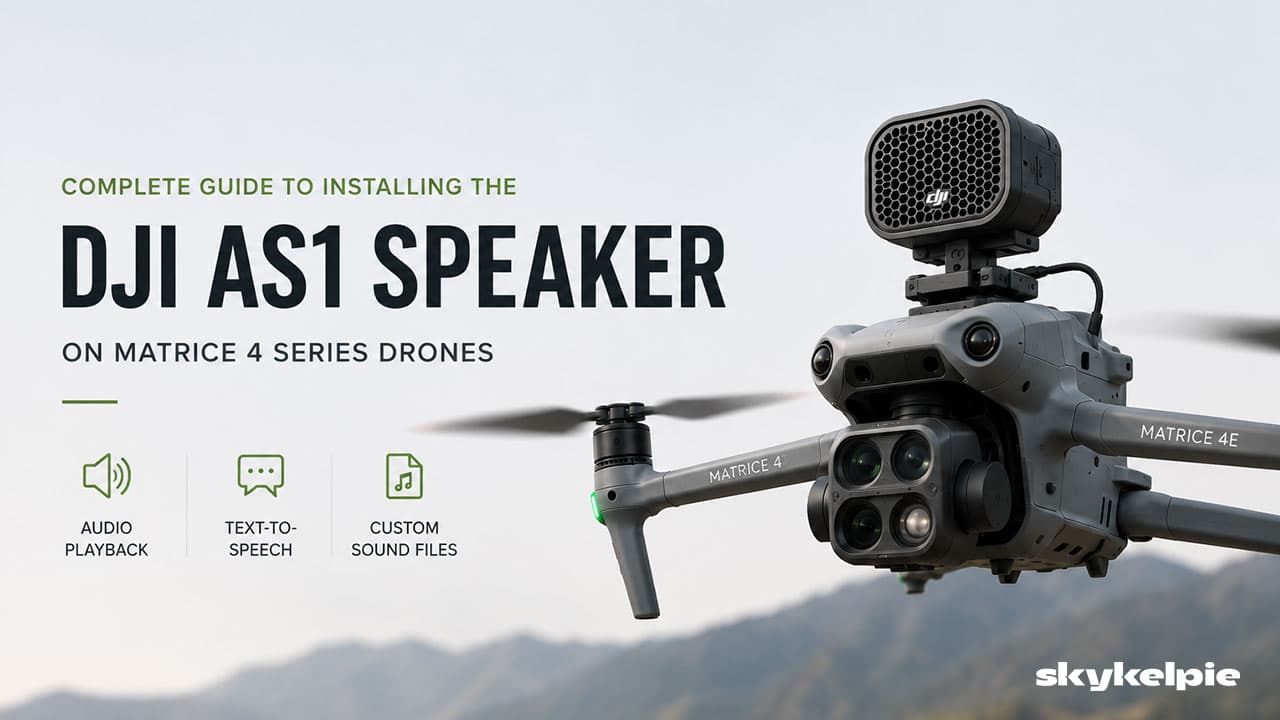
The DJI AS1 Speaker is one of the most useful accessories available for the DJI Matrice 4T and wider Matrice 4 Series.
Designed for enterprise drone operations, the DJI AS1 allows pilots to:
Broadcast live voice messages
Use text-to-speech (TTS)
Play custom audio files
Deliver emergency announcements
Coordinate teams during field operations
For Australian operators, the AS1 Speaker is increasingly being used for:
Drone mustering
Rural property management
Emergency services
Search and rescue
Public safety
Site communications
This complete guide explains how to install the DJI AS1 Speaker on the Matrice 4T, configure DJI Pilot 2 audio settings, use text-to-speech, upload custom sound files, and optimise speaker performance for real-world operations.
What is the DJI AS1 Speaker?
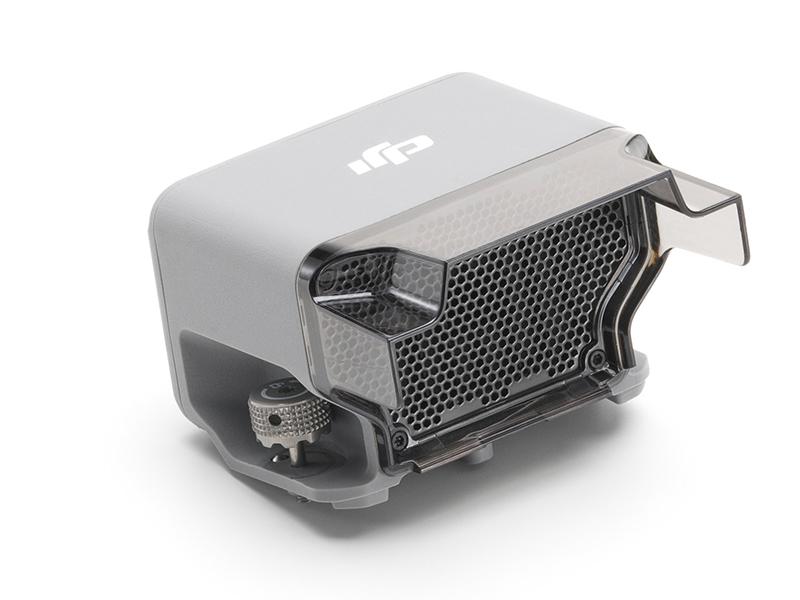
The DJI AS1 Speaker is an enterprise loudspeaker accessory built specifically for DJI’s Matrice 4 Series drones.
It integrates directly into DJI Pilot 2 and allows pilots to communicate with people on the ground during flight operations.
Key AS1 Speaker features include:
Real-time voice broadcasting
Text-to-speech announcements
Custom MP3 and WAV playback
Adjustable volume controls
Fast access inside DJI Pilot 2
The speaker is designed for operational flying rather than cinematic use, making it ideal for agriculture, emergency response, and industrial workflows.
DJI AS1 Speaker Compatibility
The DJI AS1 Speaker is compatible with:
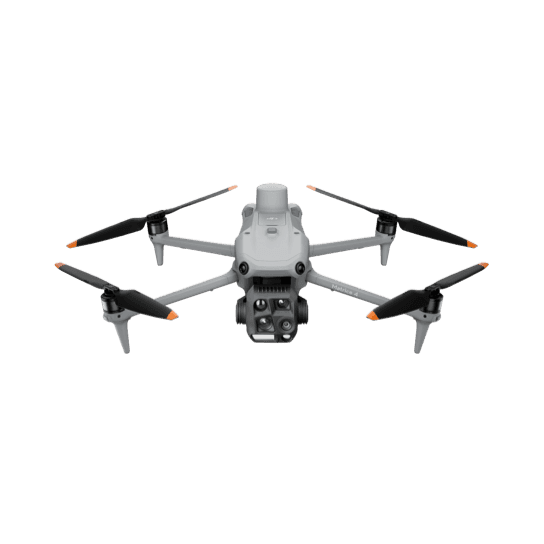
DJI Matrice 4T
DJI Matrice 4E
The speaker operates through DJI Pilot 2 on the DJI RC Plus controller.
Before installation, ensure:
Aircraft firmware is updated
DJI Pilot 2 is current
Speaker firmware matches aircraft firmware version
Firmware mismatches are one of the most common causes of speaker detection problems.
How to Install the DJI AS1 Speaker on the Matrice 4T
Step 1 — Power Off the Aircraft
Before installing the speaker:
Power off the aircraft
Power off the controller
Remove batteries if required
Place the drone on a stable surface
Never install accessories while the aircraft is powered on.
Step 2 — Locate the Accessory Mount
On the DJI Matrice 4T:
Locate the payload mounting interface underneath the aircraft
Remove any protective cover if fitted
The AS1 Speaker mounts directly onto the enterprise accessory interface.
Step 3 — Attach the DJI AS1 Speaker
Align:
Mounting tabs
Electrical contacts
Locking points
Then:
Insert the AS1 Speaker firmly
Secure the locking mechanism
Confirm there is no movement or looseness
Improper installation may cause:
Accessory disconnects
Audio failures
Vibration issues
DJI Pilot 2 detection errors
Step 4 — Power On the Aircraft
Turn on:
The aircraft
DJI RC Plus controller
DJI Pilot 2
Once connected successfully:
DJI Pilot 2 should detect the speaker automatically
A speaker icon or accessory notification should appear
If the speaker is not detected:
Re-seat the accessory
Restart the aircraft
Check firmware versions
Inspect connector pins for contamination
How to Configure DJI AS1 Speaker in DJI Pilot 2
After installation, DJI Pilot 2 provides dedicated speaker controls.
Accessing Speaker Controls
Inside DJI Pilot 2:
Open the camera view
Tap the accessory or speaker icon
Open the AS1 control panel
From here you can:
Adjust volume
Start live broadcast
Use text-to-speech
Play custom sound files
Manage playback settings
Best DJI AS1 Volume Settings
Recommended Volume:
70–90%
Running maximum volume continuously can:
Reduce clarity
Introduce distortion
Increase battery usage
For mustering and rural operations, moderate-to-high volume usually performs best.
How to Use Text-to-Speech on DJI AS1 Speaker
Text-to-speech (TTS) is one of the most popular DJI AS1 features.
It allows pilots to type messages inside DJI Pilot 2 which are automatically converted into spoken audio.
How to Enable Text-to-Speech in DJI Pilot 2
Step 1 — Open the Speaker Panel
Inside DJI Pilot 2:
Tap the speaker icon
Select Text-to-Speech
Step 2 — Enter Your Message
Type your desired announcement.
Examples:
“Please move away from the vehicle.”
“Cattle approaching from the south.”
“Emergency services are arriving.”
“Keep clear of the landing area.”
Step 3 — Play the Audio
Tap:
Play
The DJI AS1 Speaker will broadcast the message through the loudspeaker.
Best Text-to-Speech Practices
For maximum clarity:
Keep messages short
Use simple wording
Avoid long sentences
Repeat critical instructions if necessary
Short operational commands perform best during:
Mustering
Emergency operations
Search and rescue
Rural property work
How to Use Live Voice Broadcast on DJI AS1 Speaker
The DJI AS1 also supports live microphone broadcasting through the controller.
This is useful for:
Direct communication
Coordinating workers
Moving livestock
Public announcements
How to Start Live Broadcast
Step 1 — Open Speaker Controls
Inside DJI Pilot 2:
Open the AS1 Speaker panel
Select Live Broadcast
Step 2 — Hold Push-to-Talk
Press and hold the microphone button while speaking.
For best audio quality:
Speak slowly
Face the controller microphone
Avoid shouting
Hover steadily while transmitting
Best Flight Height for Audio Broadcast
Recommended Height:
10–30 metres
Flying too high:
Reduces speech clarity
Flying too low:
Creates rotor wash noise
Can spook cattle or horses
Makes voice harder to understand
For drone mustering in Australia, mid-level hover heights generally provide the clearest results.
How to Upload Custom Audio Files to DJI AS1 Speaker
Custom audio playback is one of the most powerful DJI AS1 features.
Popular uses include:
Muster commands
Safety announcements
Warning sirens
Multilingual instructions
Emergency alerts
Supported DJI AS1 Audio Formats
The DJI AS1 Speaker commonly supports:
MP3
WAV
For best compatibility:
Use short audio clips
Avoid excessive file size
Use clear recordings with minimal background noise
How to Add Audio Files to DJI Pilot 2
Step 1 — Prepare Audio Files
Recommended:
High-volume recordings
Short clips
Clean audio
Minimal wind noise
Step 2 — Transfer Files to Controller
Copy files to the DJI RC Plus using:
USB-C connection
microSD card
Internal controller storage
Step 3 — Open Audio Library
Inside DJI Pilot 2:
Open Speaker Controls
Select Audio Playback
Browse imported files
Choose desired sound clip
Step 4 — Play Audio During Flight
Tap:
Play
The DJI AS1 Speaker will broadcast the selected audio file through the loudspeaker.
Best DJI AS1 Settings for Drone Mustering
The DJI AS1 Speaker is becoming increasingly popular for Australian cattle operations.
Recommended setup for mustering:
Volume: 80%
Flight height: 15–25 metres
Wide camera active
Brake obstacle avoidance enabled
Short repetitive commands
Pre-recorded commands often work better than live speech because they:
Remain consistent
Cut through rotor noise
Reduce pilot workload
Improve livestock response
DJI AS1 Battery Impact
Using the AS1 Speaker increases:
Aircraft weight
Power consumption
Battery drain
Continuous playback reduces overall flight time.
For operational flights:
Land with larger battery reserves
Monitor battery temperatures closely
Avoid extended hover broadcasting in strong wind
Common DJI AS1 Speaker Problems and Fixes
DJI AS1 Speaker Not Detected
Possible causes:
Loose installation
Firmware mismatch
Dirty electrical contacts
Fixes:
Re-seat the speaker
Restart aircraft
Update firmware
Clean accessory contacts carefully
DJI AS1 Audio Distortion
Usually caused by:
Volume too high
Poor source recordings
Strong wind interference
Fixes:
Lower volume slightly
Use higher-quality audio files
Hover steadily before broadcasting
DJI AS1 Audio Delay
Minor delay can occur during:
Live broadcasts
Weak signal conditions
Reduce delay by:
Maintaining strong signal
Flying closer to controller
Closing background apps
Why the DJI AS1 Speaker is Useful for Enterprise Drone Operations
The DJI AS1 Speaker turns the DJI Matrice 4T into far more than a camera platform.
It becomes a practical operational communication tool for:
Agriculture
Rural properties
Emergency services
Search and rescue
Public safety
Industrial sites
For many operators, especially in Australian rural environments, the AS1 Speaker adds genuine operational capability rather than simply being another accessory.
DJI AS1 Speaker FAQ
Does the DJI AS1 Speaker work with the Matrice 4T?
Yes. The DJI AS1 Speaker is designed specifically for the DJI Matrice 4 Series including the Matrice 4T and Matrice 4E.
Can the DJI AS1 Speaker play custom audio files?
Yes. DJI Pilot 2 supports custom audio playback using compatible formats such as MP3 and WAV.
Does the DJI AS1 support text-to-speech?
Yes. DJI Pilot 2 includes built-in text-to-speech functionality for typed voice announcements.
Can you use live voice broadcast with DJI AS1?
Yes. Pilots can use the controller microphone to perform real-time voice broadcasting during flight.
Does the DJI AS1 reduce flight time?
Yes. The additional weight and speaker power usage will reduce total flight endurance slightly.
What is the best DJI AS1 volume setting?
For most operations, 70–90% volume provides the best balance between clarity and distortion control.
Final Thoughts
The DJI AS1 Speaker is one of the most practical accessories available for the DJI Matrice 4T and DJI Pilot 2 ecosystem.
Whether you’re conducting:
Drone mustering
Rural property operations
Emergency response
Public safety work
Search and rescue
the AS1 adds real operational communication capability that standard drone systems simply do not provide.
With proper setup, sensible volume settings, and clear messaging, the DJI AS1 Speaker becomes an extremely effective tool for modern enterprise drone operations.
Explore the full DJI Matrice 4 Series → — compare the Matrice 4T, 4E and 4TD, see pricing and request a quote.
Featured in this guide
Was this article helpful?
Your feedback helps us improve our documentation